Getting Started with GCM

Master your controller shortcuts and learn how to get the most out of GameConsoleMode

Controller Legend

Quick reference for all controller shortcuts

GCM Task Manager

Back + Start - Button 1+Back + Start - Button 2

Back + Start

Opens GCM Task manager, and allows for easy navigation between apps or games!

GCM Mouse Mode

Back + RS (Hold for 3 sec) - Button 1+Back + RS (Hold for 3 sec) - Button 2

Back + RS (Hold for 3 sec)

Enables GCM's integrated mouse control which allows navigation on other apps with ease while you are in GCM mode.

GCM Keyboard

Y Button - Button 1

Y Button

While GCM Mouse mode is active, pressing Y will open up the integrated keyboard which will allow you to easily type without needing an actual keyboard on standby.
GCM Overlay

LS + D-Pad Left - Button 1+LS + D-Pad Left - Button 2

LS + D-Pad Left

It will enable an overlay that shows your shortcuts. It will be expanded in the future. You can adjust the combination at any time in shortcut settings.

Important Information

Essential tips to optimize your GCM experience

Handhelds - Gamepad Mode

Handhelds - Gamepad Mode

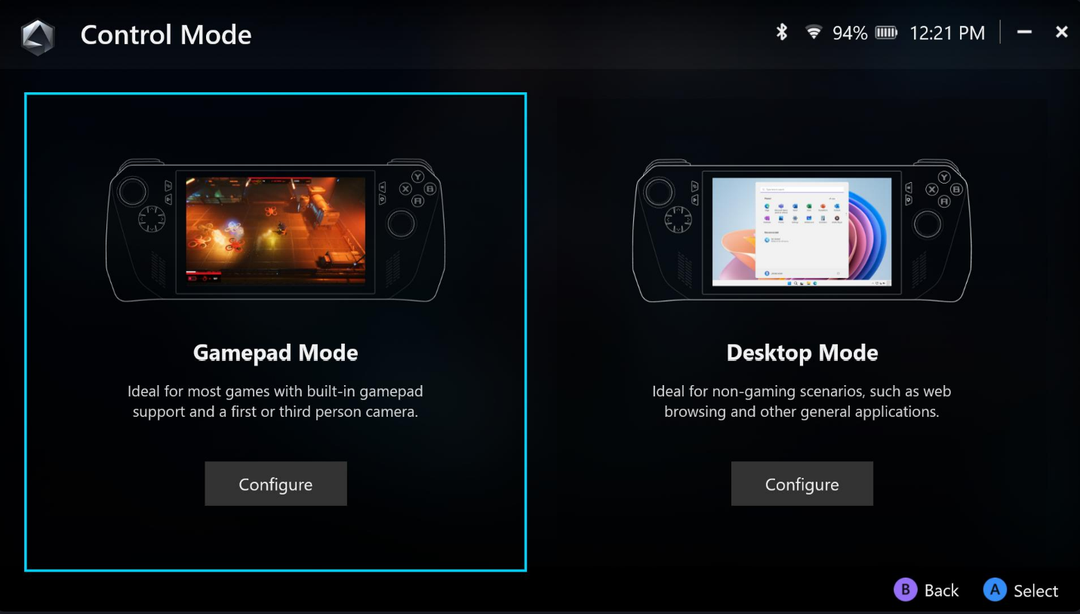
Always set your ROG Ally, or any handheld to Gamepad Mode. GCM DOES NOT work with keyboards, but primarily with Xbox controllers. Your handheld mainly uses the Xinput API, which tells the system that it is an Xbox controller, making the entire controller mapping standard across most handheld devices.

Handheld On- Screen Keyboard Popup Fix

Handheld On- Screen Keyboard Popup Fix

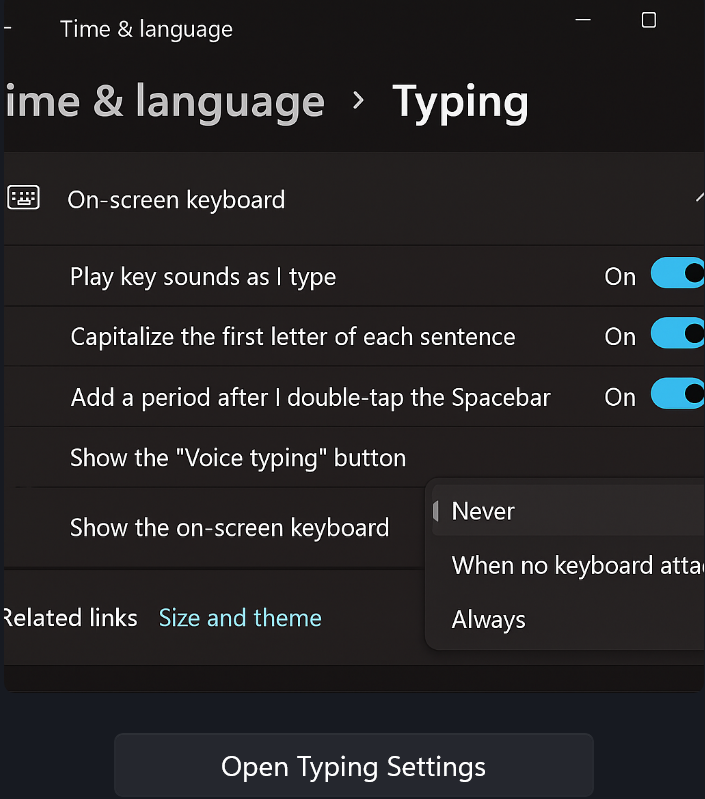
When the settings window opens, scroll down to the "On- Screen keyboard" section. Click on the dropdown next to "Show the on-screen keyboard". From that list, select "Never".

Video Tutorials

Step-by-step guides to help you master GCM

Tutorials coming soon! We're working on comprehensive guides to help you get started.

Need More Help?